Yesterday I had the most bizarre bug since I installed Mountain Lion (OS X 10.8). I find it perfect, much more than Lion (10.7), but, as I was saying, yesterday was strange. I had to use a Java Applet, in order to fill in notes for students. Nowadays, everyone is arguing about why and how you should uninstall Java, either from your system or from Firefox or whichever browser you are using.
Well, seeing the recent bugs discovered in Java 6u35, I decided to upgrade to Java 7u7, not an official upgrade from Apple but nevertheless an update found on Oracle's website. Once I installed it, proud and happy, I went to the university, and found out that nothing was working with the applet I should have used to fill in notes. I had a computer available in an office at the university, running an old Windows XP with Firefox 3.6.16. At least it worked, but I wanted to dig a little deeper anyway.
First, I noticed that none of my previous application requiring Java (say, jTagger or jDownloader) were working, but I didn't had the slightest idea if it was caused by the update or by me trying to uninstall Java. Turns out it was the update, and that neither application was compatible with Java 7. Fortunately, I had another computer lying around (the tests were made on my Macbook Air [in French], and I hadn't made the Java update on my Macbook Pro, which was suffering another bug but I'll talk about it later), and this computer ran the software cited just fine.
Just to be clear : the Java Preferences utility is very fine, and I was able to get jTagger and jDownloader running on the Macbook Air in no time, save for a reboot after choosing "Java SE 6 - 64-bit" in the utility. I could even, in case something with the old Java installation went very wrong, install the older Java 6u35 available from Apple.
But Firefox kept hanging on the Java Applet, the Java plugin for Firefox having been updated with the Java 7 update. So I zipped-up the JavaAppletPlugin.plugin from /Library/Internet Plug-Ins/ on the Macbook Pro, and transferred it to the Macbook Air to replace the newer one.
Everything worked fine from here. If you need this (older) plugin, download it here, it might save you time from wondering what went wrong. Uncompress it in /System/Library/Java/Support/CoreDeploy.bundle/Contents/ and place a link for it in /Library/Internet Plug-Ins/.
Wednesday, September 5, 2012

Thursday, August 23, 2012
Comment manger une pastèque
C'est l'été, il fait chaud, vous avez envie de manger des fruits et de boire parce qu'il fait chaud.
Alors vous achetez une pastèque. Le meilleur moyen de la manger ? Tom Willett vous l'explique, en vidéo.
Hint: C'est à la petite cuillère. Une demi-pastèque par personne (oui oui).
Hint: C'est à la petite cuillère. Une demi-pastèque par personne (oui oui).
Tuesday, July 31, 2012
Mise à jour : OSX 10.8 + MacBook Air
Hop, je passe rapidement, pour vous signaler quelques mises à jour concernant mon précédent article sur le MacBook Air.
(TL;DR : Je suis très très heureux du MacBook Air + OSX 10.8.)
En effet, j'ai fait hier au soir la mise à jour (pour 15.99e.) de Lion, 10.7, vers Mountain Lion, 10.8.
Je ne vous ferai pas l'honneur de faire un récapitulatif complet des changements entre les deux versions, d'autres gens s'en chargent bien mieux que je ne pourrai le faire (et en 26.000 signes, s'il vous plaît). En revanche, voici quelques points qui modifient ma vision des choses, notamment par rapport aux griefs que j'avais contre Lion.
Avec Mountain Lion, Apple prépare les utilisateurs de Macs à passer au clown. Chaque application peut enregistrer des documents dans un dossier en ligne (en vérité un dossier peu caché, ~/Library/Mobile Documents/), un peu à la manière de Dropbox mais dans la volonté de rendre transparente la synchronisation. Si je ne suis pas un partisan du cloud, j'ai pourtant apprécié que l'option soit disponible, et surtout qu'elle n'est ni obligatoire ni réinitialisée à chaque lancement d'application (TextEdit.app, par exemple, se souvent de votre dernier choix, création d'un document en local ou dans le cloud).
D'autres changements sont bienvenus, et parfois peu visibles à première vue.
L'application de calendrier et celle de gestion des courriels, toutes deux à forte tendance skeuomorphe, se sont ainsi vu retirer les fioritures dont je me plaignais lors de ma revue lorsque les événements sont déclenchés par un raccourci clavier. Un + shift + D enverra le mail sans animation, de même qu'un + gauche ou + droite changera de mois dans le calendrier sans animation de feuille qui se tourne. Lorsque cet événement est déclenché au trackpad (mouvement de deux doigts vers la gauche ou la droite), l'animation a été conservée.
L'indicateur de batterie, par exemple, ainsi que l'horloge du menu ont tous les deux vu leur marge gauche et droite augmentée de quelques pixels (de l'ordre de deux ou trois). Assez peu pour que cela saute aux yeux, mais juste assez pour les rendre encore un peu plus visibles.
Le centre de notifications, qui s'allie parfaitement à Growl (à ce sujet, j'ai dû revenir à une version antérieure de Growl : celle de l'App Store, pourtant payante, freezait régulièrement Echofon.app (pour Twitter), avec processeurs à 100% d'utilisations et donc ventilateurs bruyants, etc), permet de pallier au manque de visibilité des courriels reçus dont je parlais en février dernier.
Le logiciel Software Update, disponible dans le « menu Pomme » — et qui lançait jusque-là sa propre application — a été intégré à l'App Store de manière transparente. Dorénavant une recherche de mises à jour dans l'App Store affichera à la fois les mises à jour d'applications achetées par ce biais, mais aussi les mises à jour système (ce qui se comprend, car Mountain Lion est bien vendu et téléchargé sur l'App Store comme une autre application).
Plus globalement, c'est une cohérence de l'ensemble qui est — enfin ? — mise en place, à travers notamment un nouvel iChat, renommé Messages, qui permet de recevoir les textos envoyés entre iPhone (les fameux iMessages). Que les utilisateurs de l'ancien iChat (comme moi) ne s'en fasse pas trop : en un clic, l'ancienne interface est de retour, avec la fenêtre des « Buddies » à la MSN / Pidgin / Adium / GTalk. Si le GateKeeper, qui empêche par défaut les applications tierces non signées de s'installer, a bien été mis en place, il est facilement désactivable pour les utilisateurs avancés.
Il en va de même pour la plupart des nouvelles options ou des nouveaux changements de l'interface graphique : dans la plupart des cas Apple a prévu une option pour désactiver la nouvelle interface. Il est à noter que si une configuration particulière avait déjà été mise en place (par exemple pour l'affichage des courriels dans Mail.app), elle est conservée.
Enfin, le problème des fioritures dans l'interface, qui n'apparaissent plus lors de l'utilisation des raccourcis clavier (qualifiant à mon avis un « utilisateur avancé ») participe aussi de cette cohérence d'ensemble. On montre aux nouveaux arrivants les possibilités des logiciels tout en leur permettant de comprendre que non, l'informatique, ça n'est pas si compliqué, tout en valorisant les utilisateurs avancés qui n'ont souvent, à mon avis, rien à faire de tels effets graphiques.
(TL;DR : Je suis très très heureux du MacBook Air + OSX 10.8.)
En effet, j'ai fait hier au soir la mise à jour (pour 15.99e.) de Lion, 10.7, vers Mountain Lion, 10.8.
Je ne vous ferai pas l'honneur de faire un récapitulatif complet des changements entre les deux versions, d'autres gens s'en chargent bien mieux que je ne pourrai le faire (et en 26.000 signes, s'il vous plaît). En revanche, voici quelques points qui modifient ma vision des choses, notamment par rapport aux griefs que j'avais contre Lion.
Avec Mountain Lion, Apple prépare les utilisateurs de Macs à passer au clown. Chaque application peut enregistrer des documents dans un dossier en ligne (en vérité un dossier peu caché, ~/Library/Mobile Documents/), un peu à la manière de Dropbox mais dans la volonté de rendre transparente la synchronisation. Si je ne suis pas un partisan du cloud, j'ai pourtant apprécié que l'option soit disponible, et surtout qu'elle n'est ni obligatoire ni réinitialisée à chaque lancement d'application (TextEdit.app, par exemple, se souvent de votre dernier choix, création d'un document en local ou dans le cloud).
D'autres changements sont bienvenus, et parfois peu visibles à première vue.
L'application de calendrier et celle de gestion des courriels, toutes deux à forte tendance skeuomorphe, se sont ainsi vu retirer les fioritures dont je me plaignais lors de ma revue lorsque les événements sont déclenchés par un raccourci clavier. Un + shift + D enverra le mail sans animation, de même qu'un + gauche ou + droite changera de mois dans le calendrier sans animation de feuille qui se tourne. Lorsque cet événement est déclenché au trackpad (mouvement de deux doigts vers la gauche ou la droite), l'animation a été conservée.
L'indicateur de batterie, par exemple, ainsi que l'horloge du menu ont tous les deux vu leur marge gauche et droite augmentée de quelques pixels (de l'ordre de deux ou trois). Assez peu pour que cela saute aux yeux, mais juste assez pour les rendre encore un peu plus visibles.
Le centre de notifications, qui s'allie parfaitement à Growl (à ce sujet, j'ai dû revenir à une version antérieure de Growl : celle de l'App Store, pourtant payante, freezait régulièrement Echofon.app (pour Twitter), avec processeurs à 100% d'utilisations et donc ventilateurs bruyants, etc), permet de pallier au manque de visibilité des courriels reçus dont je parlais en février dernier.
Le logiciel Software Update, disponible dans le « menu Pomme » — et qui lançait jusque-là sa propre application — a été intégré à l'App Store de manière transparente. Dorénavant une recherche de mises à jour dans l'App Store affichera à la fois les mises à jour d'applications achetées par ce biais, mais aussi les mises à jour système (ce qui se comprend, car Mountain Lion est bien vendu et téléchargé sur l'App Store comme une autre application).
Plus globalement, c'est une cohérence de l'ensemble qui est — enfin ? — mise en place, à travers notamment un nouvel iChat, renommé Messages, qui permet de recevoir les textos envoyés entre iPhone (les fameux iMessages). Que les utilisateurs de l'ancien iChat (comme moi) ne s'en fasse pas trop : en un clic, l'ancienne interface est de retour, avec la fenêtre des « Buddies » à la MSN / Pidgin / Adium / GTalk. Si le GateKeeper, qui empêche par défaut les applications tierces non signées de s'installer, a bien été mis en place, il est facilement désactivable pour les utilisateurs avancés.
Il en va de même pour la plupart des nouvelles options ou des nouveaux changements de l'interface graphique : dans la plupart des cas Apple a prévu une option pour désactiver la nouvelle interface. Il est à noter que si une configuration particulière avait déjà été mise en place (par exemple pour l'affichage des courriels dans Mail.app), elle est conservée.
Enfin, le problème des fioritures dans l'interface, qui n'apparaissent plus lors de l'utilisation des raccourcis clavier (qualifiant à mon avis un « utilisateur avancé ») participe aussi de cette cohérence d'ensemble. On montre aux nouveaux arrivants les possibilités des logiciels tout en leur permettant de comprendre que non, l'informatique, ça n'est pas si compliqué, tout en valorisant les utilisateurs avancés qui n'ont souvent, à mon avis, rien à faire de tels effets graphiques.
Sunday, July 8, 2012
Les zombies à l'UQAM, c'est fini
Et qu'est-ce que c'était bon !
Pour ceux qui n'étaient pas au courant, depuis mercredi dernier et jusque hier soir, samedi, un important colloque se déroulait à l'Université du Québec à Montréal : le tout premier colloque international sur les zombies, « Invasion Montréal ».
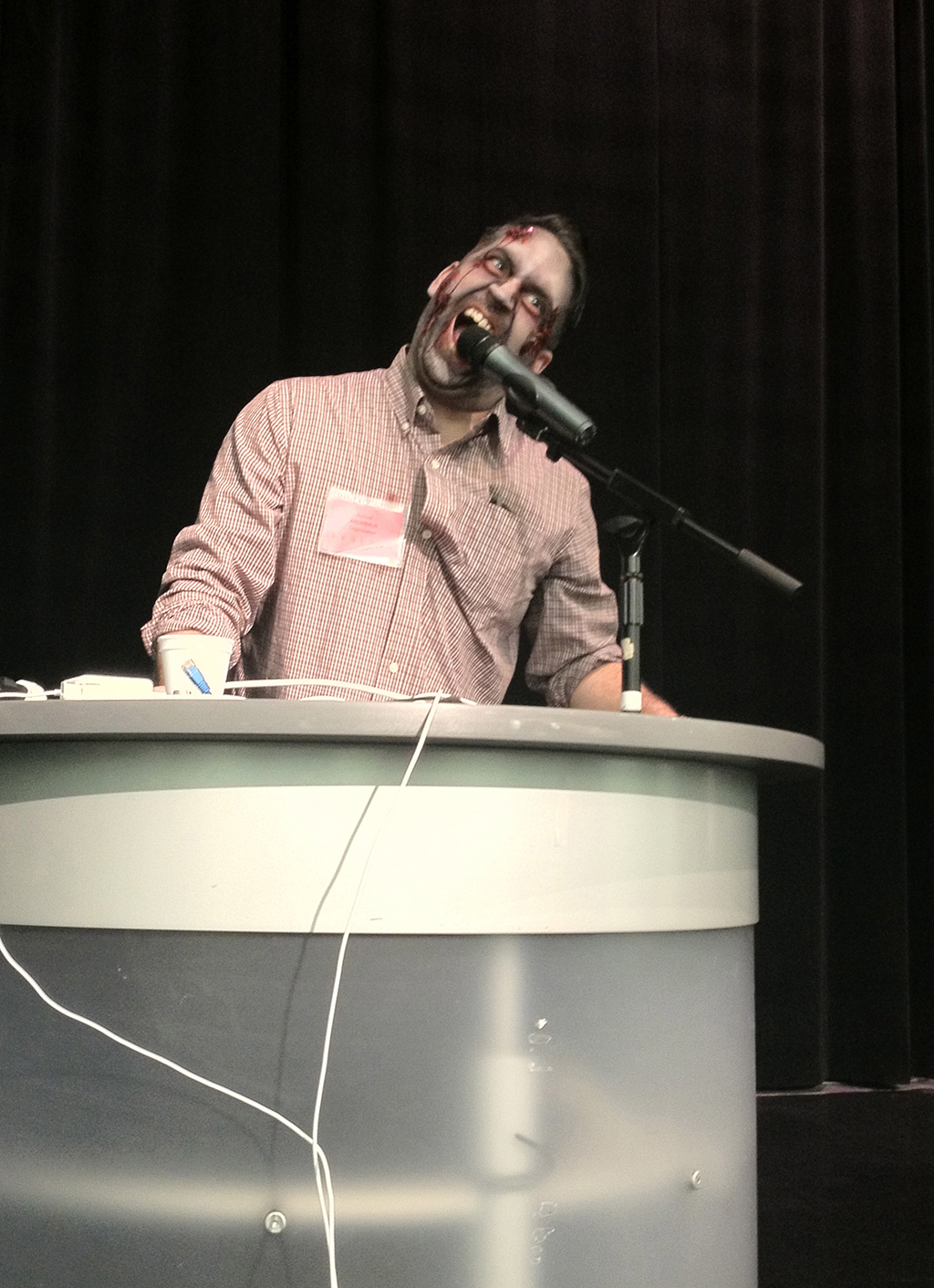
Samuel Archibald, organisateur-présentateur-zombie au micro lors de la mini-zombie walk du jeudi 5
Le colloque, organisé par Samuel Archibald, de Université du Québec à Montréal, Antonio Dominguez Leiva, de l'Université du Québec à Montréal, Barry Keith Grant, de la Brock University, Tanya Krzywinska, de la Brunel University West London, Denis Mellier, de l'Université de Poitiers, Shawn McIntosh, de la Columbia University et Bernard Perron, de l'Université de Montréal, a été officiellement lancé jeudi 5.
Il a toutefois été précédé d'une soirée spéciale à la cinémathèque québécoise avec la présentation de Nightmare City (ou Incubo sulla città contaminata, Lenzi, 1980) et Revenge of the Dead (ou Zeder, Amati, 1983).
Au cours de ces trois jours de colloque, des spécialistes de cinéma, jeu vidéo, bande dessinée, littérature et philosophie ont évoqué les diverses incarnations des zombies, depuis les films bien connus de George A. Romero jusqu'à la littérature pseudo-zombie récente (Pride and Prejudice and Zombies, de Jane Austen et Seth Grahame-Smith, mais surtout remis au goût du jour par les deux ouvrages de Max Brooks (oui, le fils de), The Zombie Survival Guide et World War Z.), en passant par ce qui a annoncé le retour de la figure du zombie dans la culture populaire : les jeux vidéo, et notamment la série des Biohazard / Resident Evil.
Liberation.fr commentait, dès mercredi 4 :
« Né des craintes associées à la fin de l’empire américain, dans les années 70, le zombie incarne aujourd’hui une paranoïa universelle : la peur d’assister à la fin de la société, la phobie d’une épidémie mondiale, du retour à la barbarie et la méfiance généralisée envers les institutions. »
« Bien entendu, nous toucherons le zombie cinématographique, mais aussi à sa signification sociale et politique. La sexualité du mort-vivant de même que son aspect plus philosophique, son ontologie, seront de la discussion », annonçait Bernard Perron, un des organisateurs, au média Canoë.ca.
Enfin, pour finir en beauté, le Huffington Post Québec s'est fendu d'une belle galerie de photos, réalisée lors d'une mini-zombie walk le jeudi 5 au soir. Le journal en ligne relie le colloque aux affaires récentes ayant donné naissance à des rumeurs d'invasion zombie :
« Le colloque Invasion Montréal se déroule alors que plusieurs histoires de cannibalisme aux États-Unis et en Chine ont fait la manchette récemment.
À Miami, un homme a dévoré le visage d'un sans-abri aux abords d'une autoroute le 26 mai dernier. Quelques jours plus tard, un homme de Baltimore a avoué avoir mangé le coeur de son coloc. En Chine, le 26 juin dernier, un chauffeur d'autobus aurait mangé le nez et les lèvres d'une femme au volant de sa voiture.
Ces incidents troublants ont forcé le Center for disease control and prevention (CDC) aux États-Unis à démentir l'apparition d'une épidémie de zombies. Le CDC a affirmé n'avoir identifié “aucun virus ni maladie qui ramènerait les morts à la vie, ou qui présenterait des symptômes similaires aux zombies”. »
Si l'on a pu déplorer un manque d'analyse formelle (plan, espace, temps) du film de zombie, c'était toutefois un colloque qui — je l'espère — marquera par son thème les études universitaires.
En plus des actes de colloque, qui paraîtront bientôt en format papier et en format numérique (sur Pop en Stock, le « Bazar d'études sur la culture populaire contemporaine » de Samuel Archibald et d'Antonio Dominguez Leiva), vous pouvez consulter quelques notes (et photos...) prises au cours de ce colloque sur twitter, grâce aux hashtags #InvasionMtl et #InvasionMontreal.
À titre personnel, je remercie encore Samuel Archibald pour son accueil et le fait qu'il ait bien voulu m'accepter parmi les « zombies bénévoles » pour la durée du colloque, ainsi que tous les organisateurs, conférenciers et participants pour l'excellent colloque, qui fera date je n'en doute pas.
Wednesday, September 28, 2011
After some tests...
OK, so, I quite fell in love with MeeGo 1.2. Unfortunately, their "Tablet" OS isn't ready for mainstream. Some things fail, some thing just don't work at all, but man do they have an understanding of what we (and by we, I mean I) want! Like Maemo before, they did a really good job at inventing new ways to interact with the device, of using screen estate, etc.
Anyway, I also wanted to try things (Ubuntu, Jolicloud (or JoliOS, as they made Jolicloud an online service, accessible via the browser).
So, Ubuntu went fine, but for some reason I wasn't able to access the BIOS while booting from any stick except the one with the recovery image dd'ed on it. Once I made changes in the BIOS (no quiet boot, try USB first) then I've been able to launch and install Ubuntu, fiddle with it, and reboot and install Jolicloud (/dev/sda1 swap (2Go), /dev/sda5 Ubuntu (6.5Go), /dev/sda6 JoliOS (6.5Go)). I already had a configured JoliOS account, so it installed automagically all my previous applications (VLC, OpenOffice etc.)
I disabled the installation of a boot loader with JoliOS, as I knew GRUB 2, installed by Ubuntu, would do the job. It did very well, a simple 'update-grub' picked up the newly installed JoliOS partition, and added it to the boot menu. It should be noted that on GRUB 2, the selection is done via the 'soft button' (near the blue led) of the WeTab; an USB keyboard will not be recognized (it hasn't been, in my tests).
I installed florence in Ubuntu, a virtual on-screen keyboard that works quite well. It might be a little small, but it's resizable, and customizable. All in all, a good choice.
I wasn't quite satisfied with JoliOS: by default, there's no on-screen keyboard installed, and the buttons are really small (Unity in Ubuntu does a great job for this). So, I formatted /dev/sda6 to reinstall MeeGo 1.2, found here. You'll find a downloadable .img of MeeGo, version 1.2.0.90, built May 17, 2011. Another version can be found here, built July 26, 2011, but I haven't tried it.
Besides, Intel dropped MeeGo today, to found Tizen. Tizen should be approximately the same thing, under another name. A first release should be made available Q1 2011.
So, what about you? What is / are your favorite(s) OS(s) on the WeTab, so far?
Anyway, I also wanted to try things (Ubuntu, Jolicloud (or JoliOS, as they made Jolicloud an online service, accessible via the browser).
So, Ubuntu went fine, but for some reason I wasn't able to access the BIOS while booting from any stick except the one with the recovery image dd'ed on it. Once I made changes in the BIOS (no quiet boot, try USB first) then I've been able to launch and install Ubuntu, fiddle with it, and reboot and install Jolicloud (/dev/sda1 swap (2Go), /dev/sda5 Ubuntu (6.5Go), /dev/sda6 JoliOS (6.5Go)). I already had a configured JoliOS account, so it installed automagically all my previous applications (VLC, OpenOffice etc.)
I disabled the installation of a boot loader with JoliOS, as I knew GRUB 2, installed by Ubuntu, would do the job. It did very well, a simple 'update-grub' picked up the newly installed JoliOS partition, and added it to the boot menu. It should be noted that on GRUB 2, the selection is done via the 'soft button' (near the blue led) of the WeTab; an USB keyboard will not be recognized (it hasn't been, in my tests).
I installed florence in Ubuntu, a virtual on-screen keyboard that works quite well. It might be a little small, but it's resizable, and customizable. All in all, a good choice.
I wasn't quite satisfied with JoliOS: by default, there's no on-screen keyboard installed, and the buttons are really small (Unity in Ubuntu does a great job for this). So, I formatted /dev/sda6 to reinstall MeeGo 1.2, found here. You'll find a downloadable .img of MeeGo, version 1.2.0.90, built May 17, 2011. Another version can be found here, built July 26, 2011, but I haven't tried it.
Besides, Intel dropped MeeGo today, to found Tizen. Tizen should be approximately the same thing, under another name. A first release should be made available Q1 2011.
So, what about you? What is / are your favorite(s) OS(s) on the WeTab, so far?
Friday, June 17, 2011
Looking forward to try MeeGo 1.2
Sorry, I haven't posted here in a while.
I've gone back to the WeTab OS, I don't quite remember why, maybe just to try the WeTab Recovery Image. It works well, except that it doesn't care about your other partitions or anything. Everything is wiped, so be aware.
Anyway, if I have time this week-end I'll try the new MeeGo 1.2 "Tablet" Developer Preview. I'm really looking forward to this, I've got a lot of faith in MeeGo. I'll try one day or the other to put it on my N900, that should be fun to try too.
Anyway, I'll put my thoughts about MeeGo 1.2 here as soon as possible. Stay tuned!
I've gone back to the WeTab OS, I don't quite remember why, maybe just to try the WeTab Recovery Image. It works well, except that it doesn't care about your other partitions or anything. Everything is wiped, so be aware.
Anyway, if I have time this week-end I'll try the new MeeGo 1.2 "Tablet" Developer Preview. I'm really looking forward to this, I've got a lot of faith in MeeGo. I'll try one day or the other to put it on my N900, that should be fun to try too.
Anyway, I'll put my thoughts about MeeGo 1.2 here as soon as possible. Stay tuned!
Thursday, December 2, 2010
WeTabOS to pure MeeGo
OK, I must warn those who are reading this text: more than I'm used to, this post is going to be really nerdy, maybe not in the best meaning of the term. This post will describe in details how to remove the WeTabOS from the WeTab internet tablet (http://wetab.info).
Brace yourselves, and get a lamp 'cause there's gonna be some grues.
First, why wouldn't I want to use the WeTab OS? Well I found the Graphical User Interface truly horrible, lacking any ergonomics engineering. While the core of the system, based on MeeGo, seemed to be good and usable (hey, a terminal accessible from the WeTab Market! Adobe Air supported out of the box!), the G.U.I. just didn't made it. The right panel always visible, the ugly virtual keyboard, I could go for hours. Ok, maybe minutes, but STILL.
Being a geek, I also wanted to try some other tablet operating system (or linuxes particularly packaged for these tablets, like JoliCloud). I use a N900 phone every day, so MeeGo, the successor to Maemo, seemed the way to go. I grabbed a disk image on their website (http://meego.com/), took the one with Chrome Browser (labelled "MeeGo v1.1 for Netbooks (Google Chrome Browser)")(there's a E.U.L.A. http://download5.meego.com/netbook/meego-v1.1-netbooks-google-chrome-browser). There's a good how-to for creating your own USB booting device, there: http://meego.com/devices/netbook/installing-meego-your-netbook, the guide is pretty straight-forward and adapted to all operating systems. The partition table of your USB drive can be either MBR or GUID (I tried with both) thanks to the WeTab having an Extensible Firmware Interface 'bios'.
Now that you have your USB drive, it's time to prepare the WeTab to boot on it. Simplest way: using the PLOP bootloader, instructions here: http://wetabz.blogspot.com/2010/10/using-plop-boot-manager.html. Basically, all you have to do is download a binary of PLOP here, copy the .img and the .bin to /boot/extlinux/, and add the entry to /boot/extlinux/extlinux.conf with vim or gedit (sudo is your friend here).
label plop
menu label ^plpbt
KERNEL memdisk
INITRD plpbt.img
menu default
I removed the "menu default" from the WeTab OS entry and added it to PLOP, just to be sure that if the keyboard isn't recognized I'll be able to boot PLOP.
So, that's it. Plug your USB drive, reboot the WeTab, don't forget to plug it to its AC adapter, and to maintain the 'soft' button as soon as the blue led lights up, and select the 'plop' entry (the quickstart button (the thingy on the upper-left of the WeTab, near the camera) can act as a selector in PLOP: one push to go down, hold to select the entry). If everything goes well, the MeeGo boot menu should appear. It didn't worked when I choose "try MeeGo", so I did an install (I already tested that in a virtual machine in OSX to be sure), and I entirely removed the WeTab OS. It should be feasible to dual- or triple-boot (plop is good for these kind of things), but I didn't wanted to spend disk space for multiple OS. Anyway, once the image is copied on the WeTab's disk, you can reboot. If you haven't done that before, now is the time to plug your USB keyboard in the WeTab.
At that point I had an error at boot, the famous "init: Id "x" respawning too fast: disabled for 5 minutes.". Just shut down the device, wait for a few seconds, and reboot.
If there's an error, or you have to leave the first screens of the MeeGo boot, don't panic: at the startup prompt, login as 'root', password 'meego', and type 'firstrun' on the command line, it'll relaunch the registering process for the new user.
Then, to activate the virtual keyboard! Again, MeeGo's website is useful for that. Basically what you have to do is add repositories to the package manager, and refresh the repositories :
$ sudo zypper addrepo http://repo.meego.com/MeeGo/releases/1.1/handset/repos/ia32/packages/ handset
$ sudo zypper refresh
then, do a '$ sudo zypper install meegotouch-inputmethodbridges', and '$ sudo zypper install meegotouch-inputmethodkeyboard'. You can do that either by plugging an USB mouse to the WeTab and selecting the Terminal in the Applications menu, or switching to the command prompt by alt+F2 or ctrl+alt+F2.
Now we are going to say to the system that it can use another input method by modifying /etc/xdg/autostart/meego-im-uiserver.desktop, adding the '-target name' and the "X-MEEGO-NB" at the end. name refers to an entry in /etc/meegotouch/devices.conf. For the WeTab, good values are 1366x768 for the X and Y resolution, and 250 and 200 for ppiX and ppiY.
Reboot! ('$ sudo shutdown -r now' or ctrl+alt+backspace)
Now you should have a working virtual keyboard! Congrats.
For the hard but last part: getting the touchscreen to work! Yeah, that thing didn't worked, from the first boot. MeeGo chooses to attribute to it a USB driver, and that is not working. At all.
So, another helpful post from Samiux's Blog, http://samiux.blogspot.com/2010/07/howto-ubuntu-1004-on-gigabyte-touchnote.html, is going to help us a lot. If you choose to install Ubuntu or some other GNU/Linux distribution based on it (Kubuntu, etc.) then you're in luck, because that bug has already been patched in the main branch (read the informations here).
Alas, we have to get dirty again. if you look closely, the post from Samiux's blog describes its touchscreen as a 'Bus 005 Device 002: ID 0eef:0001 D-WAV Scientific Co., Ltd eGalax TouchScreen', on the WeTab it's a 'ID 0eef:72a1 D-WAV Scientific Co., Ltd' (to check that, run a '$ lsusb'). We have to change the instructions in order to make it work.
In /etc/modprobe.d/blacklist.conf, add this line : 'blacklist usbtouchscreen'.
Another thing that changes is that MeeGo doesn't rely on GRUB to boot: the WeTab has an EFI 'bios', so it's extlinux again (I say again because the WeTabOS uses it too) that manages the boot. Instead of the 'GRUB_CMDLINE_LINUX_DEFAULT="quiet splash i8042.noloop=1 usbhid.quirks=0xeef:0x1:0x40"' described on Samiux's website, we have to append this after the last line in the first entry: 'i8042.noloop=1 usbhid.quirks=0xeef:0x72a1:0x40'. Note that I changed the second hexadecimal value to match the one from our 'lsusb'.
You also have to add a file in the /etc/X11/xorg.conf.d/ section. '$ sudo nano /etc/X11/xorg.conf.d/05-evdev.conf' (or whatever your preferred editor is, at that point I had already installed VIM) (again, thanks to Samiux), and add in this newly created file:
Section "InputClass"
Identifier "eGalax"
MatchProduct "eGalax"
MatchDevicePath "/dev/input/event*"
Driver "evdev"
Option "SwapAxes" "off"
Option "Calibration" "2 4100 11 4099"
EndSection
Another thing that changes: it's not Debian, so we don't have to create the .deb for xinput_calibrator like Samiux describes. Just a '$ sudo zypper install xinput_calibrator' will do the job.
Now you can reboot and enjoy the touchscreen.
And... That's it! Now you can play with it, install OpenOffice (really easy) and Firefox, impress your friends, patati patata.
P.S.: It may (or may not) have been easier to just remove the 4tiitoo UI from the WeTabOS and put MeeGo's one in place, but I'm really not sure about that. Let's say that technically, it should work (after adding the MeeGo repositories to yum, deleted everything related to tiitoo, then having installed MeeGo's UI).
Do not hesitate to ask questions here about the procedure or about MeeGo, I'll try to answer them as best as I can. Google is also (and always your friend), as are the guys on the MeeGo forum.
Brace yourselves, and get a lamp 'cause there's gonna be some grues.
First, why wouldn't I want to use the WeTab OS? Well I found the Graphical User Interface truly horrible, lacking any ergonomics engineering. While the core of the system, based on MeeGo, seemed to be good and usable (hey, a terminal accessible from the WeTab Market! Adobe Air supported out of the box!), the G.U.I. just didn't made it. The right panel always visible, the ugly virtual keyboard, I could go for hours. Ok, maybe minutes, but STILL.
Being a geek, I also wanted to try some other tablet operating system (or linuxes particularly packaged for these tablets, like JoliCloud). I use a N900 phone every day, so MeeGo, the successor to Maemo, seemed the way to go. I grabbed a disk image on their website (http://meego.com/), took the one with Chrome Browser (labelled "MeeGo v1.1 for Netbooks (Google Chrome Browser)")(there's a E.U.L.A. http://download5.meego.com/netbook/meego-v1.1-netbooks-google-chrome-browser). There's a good how-to for creating your own USB booting device, there: http://meego.com/devices/netbook/installing-meego-your-netbook, the guide is pretty straight-forward and adapted to all operating systems. The partition table of your USB drive can be either MBR or GUID (I tried with both) thanks to the WeTab having an Extensible Firmware Interface 'bios'.
Now that you have your USB drive, it's time to prepare the WeTab to boot on it. Simplest way: using the PLOP bootloader, instructions here: http://wetabz.blogspot.com/2010/10/using-plop-boot-manager.html. Basically, all you have to do is download a binary of PLOP here, copy the .img and the .bin to /boot/extlinux/, and add the entry to /boot/extlinux/extlinux.conf with vim or gedit (sudo is your friend here).
label plop
menu label ^plpbt
KERNEL memdisk
INITRD plpbt.img
menu default
I removed the "menu default" from the WeTab OS entry and added it to PLOP, just to be sure that if the keyboard isn't recognized I'll be able to boot PLOP.
So, that's it. Plug your USB drive, reboot the WeTab, don't forget to plug it to its AC adapter, and to maintain the 'soft' button as soon as the blue led lights up, and select the 'plop' entry (the quickstart button (the thingy on the upper-left of the WeTab, near the camera) can act as a selector in PLOP: one push to go down, hold to select the entry). If everything goes well, the MeeGo boot menu should appear. It didn't worked when I choose "try MeeGo", so I did an install (I already tested that in a virtual machine in OSX to be sure), and I entirely removed the WeTab OS. It should be feasible to dual- or triple-boot (plop is good for these kind of things), but I didn't wanted to spend disk space for multiple OS. Anyway, once the image is copied on the WeTab's disk, you can reboot. If you haven't done that before, now is the time to plug your USB keyboard in the WeTab.
At that point I had an error at boot, the famous "init: Id "x" respawning too fast: disabled for 5 minutes.". Just shut down the device, wait for a few seconds, and reboot.
If there's an error, or you have to leave the first screens of the MeeGo boot, don't panic: at the startup prompt, login as 'root', password 'meego', and type 'firstrun' on the command line, it'll relaunch the registering process for the new user.
Then, to activate the virtual keyboard! Again, MeeGo's website is useful for that. Basically what you have to do is add repositories to the package manager, and refresh the repositories :
$ sudo zypper addrepo http://repo.meego.com/MeeGo/releases/1.1/handset/repos/ia32/packages/ handset
$ sudo zypper refresh
then, do a '$ sudo zypper install meegotouch-inputmethodbridges', and '$ sudo zypper install meegotouch-inputmethodkeyboard'. You can do that either by plugging an USB mouse to the WeTab and selecting the Terminal in the Applications menu, or switching to the command prompt by alt+F2 or ctrl+alt+F2.
Now we are going to say to the system that it can use another input method by modifying /etc/xdg/autostart/meego-im-uiserver.desktop, adding the '-target name' and the "X-MEEGO-NB" at the end. name refers to an entry in /etc/meegotouch/devices.conf. For the WeTab, good values are 1366x768 for the X and Y resolution, and 250 and 200 for ppiX and ppiY.
Reboot! ('$ sudo shutdown -r now' or ctrl+alt+backspace)
Now you should have a working virtual keyboard! Congrats.
For the hard but last part: getting the touchscreen to work! Yeah, that thing didn't worked, from the first boot. MeeGo chooses to attribute to it a USB driver, and that is not working. At all.
So, another helpful post from Samiux's Blog, http://samiux.blogspot.com/2010/07/howto-ubuntu-1004-on-gigabyte-touchnote.html, is going to help us a lot. If you choose to install Ubuntu or some other GNU/Linux distribution based on it (Kubuntu, etc.) then you're in luck, because that bug has already been patched in the main branch (read the informations here).
Alas, we have to get dirty again. if you look closely, the post from Samiux's blog describes its touchscreen as a 'Bus 005 Device 002: ID 0eef:0001 D-WAV Scientific Co., Ltd eGalax TouchScreen', on the WeTab it's a 'ID 0eef:72a1 D-WAV Scientific Co., Ltd' (to check that, run a '$ lsusb'). We have to change the instructions in order to make it work.
In /etc/modprobe.d/blacklist.conf, add this line : 'blacklist usbtouchscreen'.
Another thing that changes is that MeeGo doesn't rely on GRUB to boot: the WeTab has an EFI 'bios', so it's extlinux again (I say again because the WeTabOS uses it too) that manages the boot. Instead of the 'GRUB_CMDLINE_LINUX_DEFAULT="quiet splash i8042.noloop=1 usbhid.quirks=0xeef:0x1:0x40"' described on Samiux's website, we have to append this after the last line in the first entry: 'i8042.noloop=1 usbhid.quirks=0xeef:0x72a1:0x40'. Note that I changed the second hexadecimal value to match the one from our 'lsusb'.
You also have to add a file in the /etc/X11/xorg.conf.d/ section. '$ sudo nano /etc/X11/xorg.conf.d/05-evdev.conf' (or whatever your preferred editor is, at that point I had already installed VIM) (again, thanks to Samiux), and add in this newly created file:
Section "InputClass"
Identifier "eGalax"
MatchProduct "eGalax"
MatchDevicePath "/dev/input/event*"
Driver "evdev"
Option "SwapAxes" "off"
Option "Calibration" "2 4100 11 4099"
EndSection
Another thing that changes: it's not Debian, so we don't have to create the .deb for xinput_calibrator like Samiux describes. Just a '$ sudo zypper install xinput_calibrator' will do the job.
Now you can reboot and enjoy the touchscreen.
And... That's it! Now you can play with it, install OpenOffice (really easy) and Firefox, impress your friends, patati patata.
P.S.: It may (or may not) have been easier to just remove the 4tiitoo UI from the WeTabOS and put MeeGo's one in place, but I'm really not sure about that. Let's say that technically, it should work (after adding the MeeGo repositories to yum, deleted everything related to tiitoo, then having installed MeeGo's UI).
Do not hesitate to ask questions here about the procedure or about MeeGo, I'll try to answer them as best as I can. Google is also (and always your friend), as are the guys on the MeeGo forum.
Subscribe to:
Posts (Atom)